
How to Fix OneDrive Not Syncing Files
If your OneDrive files are not syncing on Windows 10 or Windows 11, there are a few quick steps you can try to get things moving again.
Step 1 – Check Your Internet Connection
- Make sure you are connected to the internet.
- If you’re on Wi-Fi, try opening a webpage to confirm the connection is working.
Step 2 – Confirm You’re Signed in to OneDrive
- Click the OneDrive cloud icon in the bottom-right corner of your screen (near the clock).
- If it says “Not signed in”, click Sign in and enter your Microsoft 365 account details.
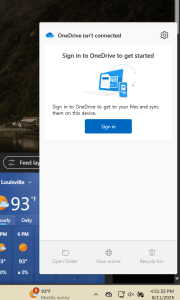
Step 3 – Look for Sync Issues
- Click the OneDrive cloud icon.
- If you see a warning icon (yellow triangle or red X), click it to view the issue.
- Follow any on-screen instructions to resolve problems (such as signing in, freeing up space, or closing open files).
Step 4 – Restart OneDrive
- Right-click the OneDrive cloud icon in the taskbar.
- Click Quit OneDrive.
- Open the Start Menu, search for OneDrive, and open it again.
Step 5 – Check Your Storage
- If your OneDrive is full, files will not sync.
- Right-click the OneDrive icon → Manage storage to check your space.
- Delete unnecessary files or purchase more storage if needed.
Step 6 – Run the OneDrive Troubleshooter
Windows includes a troubleshooter for OneDrive that can help fix syncing issues:
- Press Windows Key + I to open Settings.
- Go to System > Troubleshoot > Other troubleshooters.
- Find Windows Store Apps (which includes OneDrive) and run it.
Was this helpful?
By voting, you consent to anonymous data collection to prevent duplicate votes. No personal information is stored.